


4G WiFi connector (grey)
Mobiel internet voor camper, caravan of boot. De Travel Vision 4G WiFi Connect is dé mobiele WiFi oplossing voor op de camping en onderweg. Dankzij de krachtige buitenantenne met MiMo technologie heb je een stabiele verbinding, zelfs op plekken met een zwak signaal.
Deze simlockvrije 4G router biedt drie internetopties: via een 4G simkaart, als WiFi repeater of via een bekabelde WAN-aansluiting. Ideaal voor reizigers die zorgeloos online willen blijven, of je nu e-mailt, streamt of werkt.
Belangrijke kenmerken:
• Werkt wereldwijd met iedere provider (simlockvrij)
• 3G/4G LTE verbinding tot 300 Mbps downloadsnelheid
• WiFi repeater functie (2,4 GHz & 5 GHz)
• WAN-ingang & LAN poorten voor bekabeld internet
• 12V voeding geschikt voor mobiel gebruik
Eigen veilig WiFi netwerk op reis, tot 10 apparaten tegelijk verbonden.
Specifications for the
4G WiFi connector (grey)
WiFi Connect - Algemene vragen
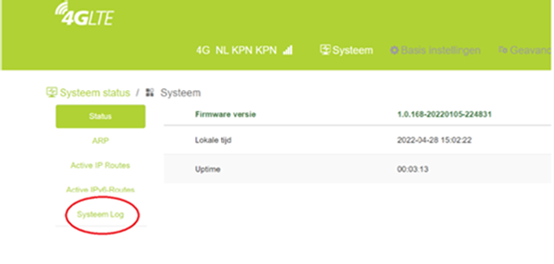
Hoe maak ik een logfile van de router?
• Onder systeem vindt u meer details.
• Klik op systeem log
• Download het tekst bestand. (het bestand wordt in uw download map gezet)
.png)
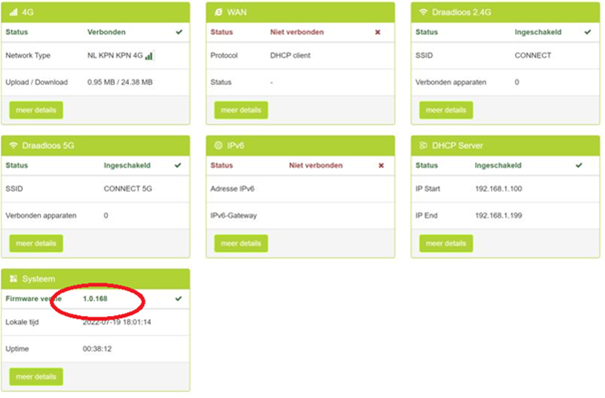
Hoe kan ik zien wat de firmware versie is van de router?
Deze kunt u vinden op de eerste inlog pagina onder Systeem – Firmware versie, als onderstaand voorbeeld:
How can I perform a factory reset with the 4G Connect router?
There are two ways to reset the router to its factory settings.
- Using button 7 on the back of your router next to the power adapter connection (see your manual if necessary)
- Under Advanced Settings, under System, you will find Factory Reset.
WiFi Connect - Storingen internetverbinding
No internet, even though there is a Wi-Fi connection with an iPhone or iPod touch
You have a Wi-Fi connection with your iPhone, iPad or iPod touch on the router, and the router is also connected to the internet. However, your iPhone, iPad or iPod touch displays the message: the Wi-Fi network ‘Connect (5G)’ is not connected to the internet.
Disable the Private Address in the Wi-Fi settings of your iPhone, iPad or iPod touch.
A private address does not affect how you connect to most Wi-Fi networks or how you use them, but if a network does not allow your device to access it, or does not allow further network or internet access after you have connected, you can turn off “Private Address” for that network.
iPhone, iPad or iPod touch:
- Open the Settings app and tap “Wi-Fi”.
- Tap the info button next to a network.
- Tap to turn Private Address on or off. If your device has connected to a network without using a private address, a privacy warning will explain why.
Starting with iOS 14, Apple has enabled the Private Wi-Fi Address feature by default. For more information, please visit: Apple Tips
WiFi Connect - Storingen locale verbinding
When I log in with IP address 192.168.1.1, I am directed to a different router than the 4G Connect.
You have logged in and connected to a WiFi hotspot, but when you log in with the sticker and the corresponding IP address 192.168.1.1, you are redirected to the page of another router.
The WiFi hotspot uses the same IP address range as the 4G connect router, and the 4G connect automatically changes its IP address to 10.1.1.1.
If you use 192.168.1.1, you will end up on the hotspot router page and not on the 4G connect router.
Enter the IP address 10.1.1.1 in the browser's address bar so that you can access the router again (the sticker on the front of the router no longer works).
The router will continue to use this IP address until a full factory reset is performed or you log in to a hotspot with 10.1.1.1.
I receive a security alert when I log in to the 4G Connect router.
You log in to the 4G connect router, but your browser displays a security warning
- ‘Your connection is not private’ (Google Chrome)
- ‘Your connection is not private’ (Microsoft Edge)
- ‘Warning: possible security risk’ (Mozilla Firefox)
- ‘Your connection is not secure’ (Mozilla Firefox)
- ‘This connection is not private’ (Apple Safari)
The web browser flags connections to websites that are not encrypted or only partially encrypted as unsafe, because data entered on such websites can be intercepted by third parties. When establishing an encrypted HTTPS connection, the web browser checks the website's security certificate. The web browser marks the HTTPS connection with the 4G connect as unsafe.
Because the user interface of the 4G connect is opened within the home network and the password is not sent via the internet, you can ignore the message.
I can no longer log in to the router with 192.168.1
You have logged in and connected to a WiFi hotspot, but you can no longer log in to the router with the sticker and the corresponding IP address 192.168.1.1.
The WiFi hotspot uses the same IP address range as the 4G Connect router and automatically changes the IP address of the 4G Connect to 10.1.1.1. The router will continue to use this IP address until a full factory reset is performed or you log in to a hotspot with 10.1.1.1.
Enter the IP address 10.1.1.1 in the browser's address bar so that you can access the router again (the sticker on the front of the router no longer works).
The home page of the WiFi hotspot where I need to enter a login code does not appear.
The start page of the campsite WiFi hotspot is not displayed on a connected device, which means you cannot enter the password or accept the terms and conditions of the hotspot.
The 4G connect router continues to show a connecting status in the dashboard menu.
What is a Captive Portal?
A Captive Portal is a type of WiFi start page that you land on when you connect to a WiFi Hotspot. This is also called a “captive portal”; the visitor is “captured” on the start page and cannot proceed until they enter their login details and/or accept the terms and conditions.
The DNS settings in the memory of the device connected/linked to the 4G Connect are most likely the problem. This is possible with some captive portals of Wi-Fi hotspots, and it may also depend on whether a device that was previously logged in has since been connected to the Connect router.
If this problem occurs, you can try the following:
• Switch your phone off completely and then on again before logging into the 4G Connect router and connecting to the hotspot. This will clear your device's DNS cache.
• If you are using a PC/laptop, you can also reset the DNS. In Windows 10, enter the command ipconfig/flushdns at the command prompt. (Open the Start menu, click Command prompt, and enter the command: ipconfig/flushdns.
We are also looking into whether we can resolve this issue automatically by modifying the 4G Connect software, for example through a software update.
Update August 2021: new software is available to help resolve this issue. Click on the following link: Firmware 4G connect.